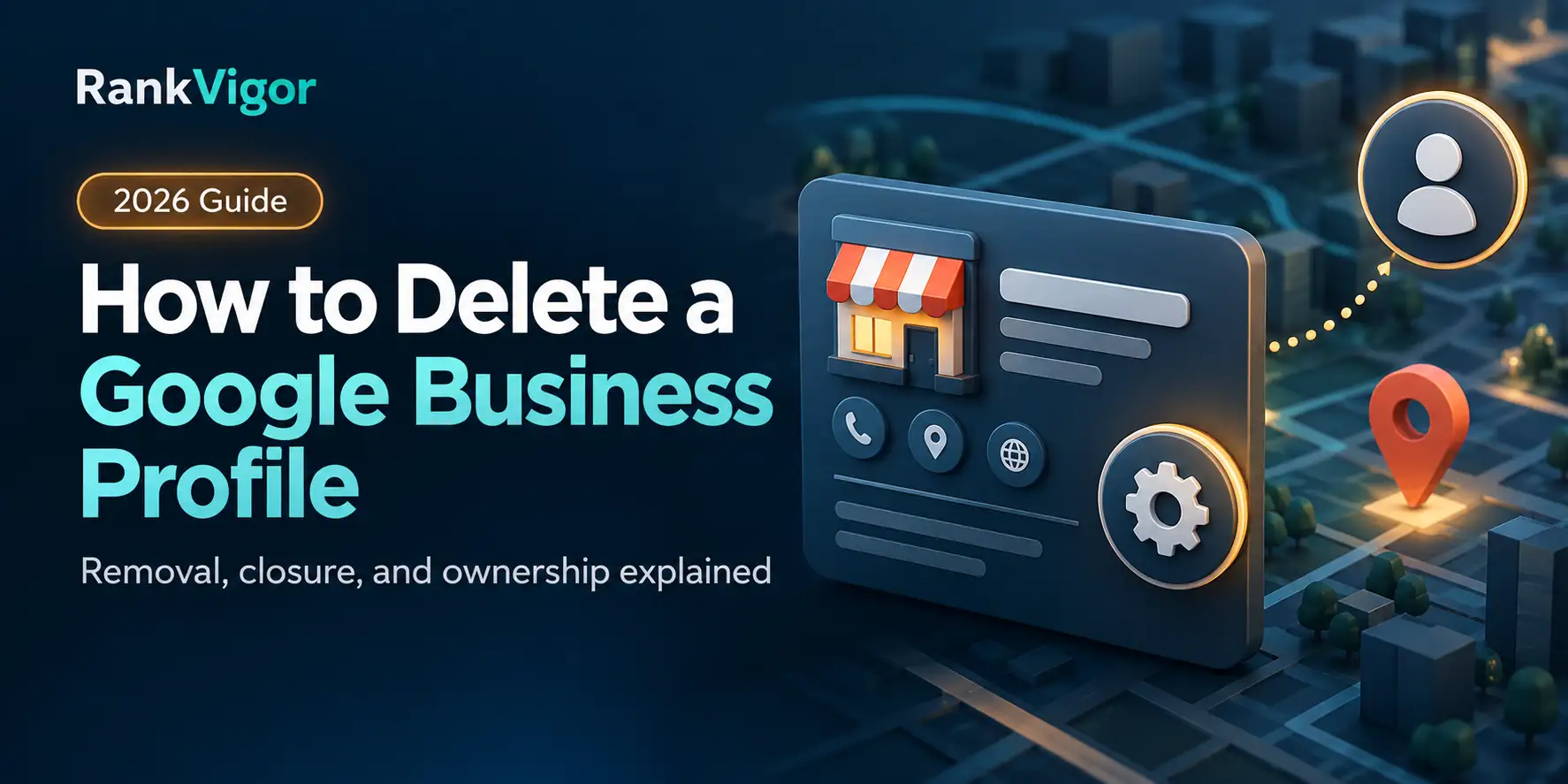
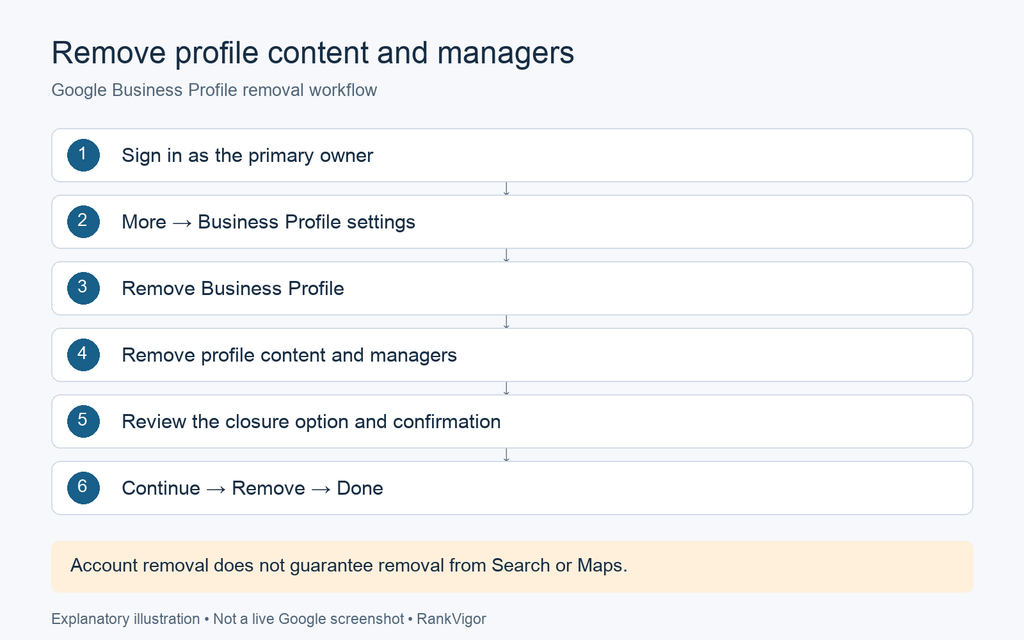
To delete a Google Business Profile from your account, sign in as the primary owner and open More → Business Profile settings → Remove Business Profile → Remove profile content and managers. Review the confirmation, then select Continue → Remove → Done.
This removes management access and business-added content. It does not guarantee that the listing disappears from Google Search or Maps, and it does not erase customer reviews.
If your business has closed, moved, changed ownership, or acquired a duplicate listing, the right action may be different. This guide explains which option to choose before you remove anything. Google Business Profile is the current name for what was previously called Google My Business.
Should you delete your Google Business Profile?
Start with the problem you want to solve. Removing access, marking a business closed, and requesting removal from Maps have different effects.
| Your situation | Recommended action | What to expect |
| The business has closed for good | Mark it permanently closed | The listing can remain visible with a closure label |
| You are closed for a season or for more than 7 days | Mark it temporarily closed | The profile stays available with a temporary closure label |
| You are closed for 7 days or less | Set special hours | Customers see the adjusted schedule |
| You moved to a new address | Update the existing profile | Avoid creating a separate listing for the same business |
| You sold the business | Transfer primary ownership | The new owner can manage the existing profile |
| You no longer manage the business | Remove your own access | Other users and the profile content remain |
| You created an accidental duplicate | Remove the extra profile after checking which one is correct | Removing it from your account does not guarantee public removal |
| Two listings for the same business are live on Maps | Report the duplicate and request a merge | Google reviews the request |
| A listing never existed or is ineligible | Request removal through Maps | Removal depends on Google's decision |
Do not delete a profile to hide a bad review. If the business is still operating, keeping access lets you respond to customers and correct inaccurate information. Our Google Business Profile optimization guide explains how to improve an active listing.
How to delete a Google Business Profile from your account
Use this process only when you intend to remove the profile's content and all owners and managers. It is different from leaving a profile yourself.
Before you start
Confirm that you are the primary owner under Business Profile settings → People and access. Newly added owners or managers face a seven-day restriction on certain actions, including removal.
Save your original business photos, videos, post copy, and any review replies you want to keep. Check the location and tell anyone else who manages it before continuing. The action affects all profile users.
Follow the removal steps
1. Sign in to the Google account that is the primary owner.
2. Find your business on Google Search or open Business Profile Manager and select the correct profile.
3. Open More, usually shown as a three-dot menu, then Business Profile settings.
4. Choose Remove Business Profile → Remove profile content and managers.
5. Turn on Mark your business as permanently closed only if it has genuinely stopped operating.
6. Read the confirmation and select Continue → Remove → Done.
Google's official removal instructions explain the action. Menu placement can vary by device and interface; follow the option names rather than expecting an identical screen layout.
Remove multiple profiles
In Business Profile Manager, select the locations you intend to remove. Choose Actions → Remove businesses → Remove. Check every selected location first. If bulk removal returns an error, use the individual profile process.
What happens after you remove the profile
Business-added posts, photos, videos, and review replies are permanently deleted. Customer reviews and other public contributions remain. You also lose management access; managing the business again requires re-verification, which does not restore deleted content.
The listing may still be visible on Search and Maps. A successful account removal is therefore not proof that Google has removed the public business listing.
If you still see it, check whether the remaining listing is accurate. For a real business that has closed, a closure label gives customers useful information. For a duplicate or an ineligible listing, use the reporting route that matches the issue.
How to mark your business as permanently or temporarily closed
If the business has stopped trading, marking it closed usually gives customers a clearer answer than simply removing your access.
1. Open your Business Profile while signed in.
2. Select Edit profile → Hours.
3. In Business hours, select Edit next to Hours.
4. Choose Permanently closed or Temporarily closed.
5. Select Save.
Google's closure guidance says to use Temporarily closed for closures longer than seven days, seasonal closures, or an indefinite temporary closure. For seven days or less, set special hours.
A permanently closed profile can still appear when someone searches for it. Google does not provide a fixed disappearance deadline, so do not treat closure as an immediate deletion tool.
For example, a cafe closed for a two-day equipment repair should update special hours. A cafe closed for a month-long renovation should use Temporarily closed. When it reopens, update its operating status and hours.

How to remove a business listing you do not own
You can request removal of a listing that never existed or is not eligible for Google Business Profile, even without ownership access.
1. Sign in to Google and open Google Maps.
2. Find and select the business listing.
3. Choose Suggest an edit → Place is closed or not here.
4. Select the reason that accurately describes the problem, such as Doesn't exist here.
5. Submit the request.
Google reviews the request and may ask follow-up questions. An approved request can remove the business from Search and Maps. See Google's public listing removal guidance.
A wrong phone number or incorrect opening hours normally calls for an information correction. Do not report a real, eligible business as nonexistent simply because you want its listing removed.
How to handle a duplicate Google Business Profile
A duplicate in your account and two public listings on Maps are separate problems. Check the business name, address, reviews, ownership, and Maps links before removing either profile.
You created an extra profile by mistake
If you already have the correct verified profile, remove the accidental extra from your account using the removal steps above. Google's duplicate profile guidance says this can be done without affecting the verified listing. Be certain you have selected the extra profile, because its linked users and business-added content will be removed.
Both listings are visible on Maps
Open the duplicate on Google Maps and choose Suggest an edit → Place is closed or not here → Duplicate of another place. Follow the available prompts to identify the correct listing. Google reviews duplicate and merge requests.
Google's Maps editing instructions describe the duplicate reporting option. When Google approves a merge for the same business, reviews are combined, although review replies may be lost.
Do not mark an operating business permanently closed as a shortcut for resolving a duplicate. If two distinct eligible businesses share an address, they may each qualify for a profile. Practitioner and department profiles also need a separate eligibility check. Our guide to Google Business Profile relationships explains these situations.
How to stop managing a profile without deleting its content
If you are leaving a business or changing agencies, remove the right person's access instead of removing everyone's access and content.
Transfer ownership after selling the business
Add the new owner through Business Profile settings → People and access if they do not already have access. Allow the applicable seven-day waiting period. As the current primary owner, select their name, edit their access role to Primary owner, and save. You can then remove yourself.
Following Google's ownership transfer instructions lets the new owner continue managing the existing profile and its reviews.

Remove yourself or a former manager
To leave a profile, open Business Profile settings → People and access, select yourself, then Stop managing → Confirm. A primary owner must transfer primary ownership first. Your earlier posts and review replies remain when you only remove your own access.
To remove an ex-employee or former agency, an owner can select that user under People and access and remove them. Google's access management guide covers both actions. Each person should use their own account rather than sharing a password.
Common problems and mistakes to avoid
You cannot find the removal option
Check that you selected the correct Google account and location. Confirm your primary-owner role and whether the seven-day restriction applies. If the expected controls are still missing, use Google Business Profile support rather than creating another listing.
You moved and want to start fresh
Update the address on the existing profile. Google's address management guide explains the location fields. Removing an established profile and creating another can create duplicate and ownership problems.
If you are a service-area business that does not receive customers at its address, check whether hiding the address and displaying your service area solves the problem. You may not need to remove the profile.
You want to erase a negative review
Deleting business-added content leaves customer reviews in place. Report a review only if it violates Google's policies. Google's review reporting guide explains the process; disagreement with a review alone is not grounds for removal.
Your profile is missing from Maps
Do not assume deletion is the solution. Check verification, duplicate status, and other visibility issues first. Our guide to a business not showing on Google Maps can help you narrow down the cause.
Frequently asked questions
Can I permanently delete a Google Business Profile?
You can permanently remove business-added content and management access. That action does not guarantee removal of the public listing. A nonexistent or ineligible listing needs a separate removal request.
Will deleting the profile remove bad reviews?
No. Customer reviews remain after content and managers are removed. For a policy violation, use Google's review reporting process.
How long does it take to disappear from Google?
Google does not give a fixed timeline. Closed businesses can remain visible, particularly when people search for them by name. Do not assume that completing the account removal makes the Maps listing disappear immediately.
Can I recover the profile after removing it?
You may be able to manage the business again by completing re-verification. However, permanently deleted business-added content cannot be recovered through that process. Leaving a profile yourself, while others retain access, is a different action.
Should I delete my profile after moving or selling the business?
For a move, update the existing profile's address. For a sale, transfer primary ownership. These actions preserve continuity without creating a replacement listing for the same business.
Can a manager delete a Google Business Profile?
A manager can remove their own access but cannot use the primary-owner removal action. Ask the primary owner to handle it only if removing all content and managers is the intended outcome.
Need help choosing the right option?
For an active business, check whether an address update, ownership transfer, access change, or duplicate report will solve the issue before deleting anything.
If you are unsure what is affecting your listing, request RankVigor's free SEO audit and share the profile link and the issue you want to resolve.